Wikipedia names your band

Via Waxy Links is a meme called Wikipedia Names Your Band. Here’s how you do it:

  1. Go to a random Wikipedia article – the name of the article becomes your band’s name.
  2. Go to Random Quotations – the last 4-5 words of the last quotation on the page are your the title of your first album.
  3. Go to Flickr’s “Explore the last 7 days” and choose the third picture – this will be your album cover.

Put them all together, and you get something like this:

The components for mine were:

There are many other covers on the Buzzfeed page, some of which are very good.

Mac Mini alive again

January wasn’t a great month for me and my 2 Macs, as I managed to get both of them to stop working. First of all, the backlight on my MacBook’s screen stopped working, which I managed to fix after about half an hour’s Googling. Then I found my Mac Mini was refusing to boot but alas was not able to fix it.

The good news is that I have now fixed it. The bad news is that I’m not entirely sure what it was I did that got it to work again. Essentially, I took the lid off (easier said than done as it requires using a thin, flexible knife to prize the shell away from the base), poked at it, put the lid back on again and it booted up fine.

I say essentially because there was more to it than that. Because I was receiving the error ‘ALLOC-MEM request too big!’ from OpenFirmware while booting, I first assumed it to be a RAM error, so I took the RAM out and re-seated it, then booted the machine without putting the cover back on. That didn’t work, so I poked at the Bluetooth and Airport aerials to see if that made any difference – again nothing. So I put the lid back on and was about to concede defeat, but decided to see if putting the lid on had made any difference. And it had – the machine booted up, albeit slowly.

The computer is now running, although it does seem slow – that may just be because it always has been slow and I just haven’t used it recently. I haven’t yet restarted it so it may of course be a fluke, but right now all the programs on it seem to be working fine – no unexplained crashes and no grey screens of death as yet.

So if you have the dreaded ‘ALLOC-MEM request too big!’ error, trying taking your Mac apart and check if everything is seated correctly, and then try booting again. It may fix it. Of course, if it doesn’t, it may be indicative of bigger problems so don’t rule out a trip to the Genius Bar or a call to AppleCare.

And now it’s the Mac Mini’s turn

As many of you will know, as well as my MacBook, which I use as my main computer, I have a Mac Mini as well – this was my first Mac which I bought in 2005. It has spent the past year or so searching for a purpose – I was, and still am, hoping to turn it into a media centre but I’ve neither had the time or money to go ahead with it, and to be honest, I don’t really need to either.

Anyway, after yesterday’s shenanigans with my MacBook, it’s the turn of the Mac Mini to refuse to work. It’s actually not a problem that developed today – I noticed it wasn’t working last week, but as I run it headless I didn’t have a computer monitor to plug it into. All I knew was that it wasn’t registering itself on the network.
Today I had chance to use it with an external monitor. I heard the startup sound, saw the Apple logo on the screen, and then, nothing. No status indicator, just the Apple logo.

So, I zapped the PRAM – Command+Option+P+R. This time, the status indicator appeared for about 10 seconds before the Grey Screen of Death appeared, showing a kernel panic. This happened with subsequent boots.

So, I tried booting from the OS X CDs. Same problem. In fact, after a while, all I could do was access the Open Firmware command prompt.

This therefore means that there’s something wrong with the RAM or another component. Over the Christmas period, I took my Mac Mini with me to my parents in York, rather than leaving it in Bradford as I figured it would be safer. I’m guessing that it may have got jolted in transit and one or more of the components is out of place. It could also be bad RAM, but the RAM was only replaced in November 2006 and it was good-quality Crucial RAM. Plus, it’s a faff trying to get the damn thing apart and will probably require the purchase of another putty knife seeing as my existing one has gone missing.

In the meantime, I have a nice iOrnament.

How to: fix your MacBook screen

Had a bit of a panic this morning when I let my MacBook go to sleep, and upon re-awaking the screen’s backlight would not come on. The screen itself was working, as I could see a small portion of the desktop in the middle where the Apple logo is, but the rest was un-viewable.

It’s working now, but not after trying almost every trick in the book. I’ve listed all of the methods here, mostly for my own reference in case it happens again but also for anyone having a similar problem.

Diagnostics

First of all, make sure that the rest of the computer is working. If you have an external display handy, plug that in and use Fn+F7 to activate it (you may not need to hold down the Fn key depending on your Mac’s settings). If you can see your desktop on the external display then the problem is with the display – if not, you computer may have deeper problems. If you have VNC set up, you could try this too.

1. Set your brightness

Sometimes it’s the basic things – your brightness might be set to minimum. Use Fn+F2 to turn up the brightness (you may not need to hold down the Fn key depending on your Mac’s settings).

2. Zap your PRAM

One trick to deal with minor hardware problems is to reset your PRAM and NVRAM. To do this, power down your Mac, then, turn it on and hold down Command+Option+P+R at the same time, until your Mac makes the ‘ding’ noise again. Command is the Apple key, Option may be labelled as ‘alt’ on your computer.

3. Reset your Energy Saver settings

You may need to use an external monitor or VNC for this. While you Mac is booted, open System Preferences and choose Energy Saver. Under ‘Put the displays to sleep’, set the timer to 1 minute, and then wait 1 minute for your machine to go to sleep. Wake it up, and hopefully your screen will spring back to life.

4. Take out the battery

If your Mac is a portable, turn the computer off, unplug the AC power cord, and take the battery out. Next, hold down the power button for 5 seconds, and the re-insert the battery. Then boot up again. In my case, this is what worked.

Edinburgh at Night

Edinburgh Castle

Yesterday I had a job interview with the University of Edinburgh, and due to Edinburgh being somewhat distant from Bradford I travelled up the day before and stayed the night. This gave me ample opportunity to play around with my new camera. Hence, I bring you various night-time shots of places and buildings in Edinburgh.

I was surprised at how few buildings in the city were illuminated at night – the Scott Monument on Princes’ Street being one of the more notable structures that were shrouded in darkness. Still, I managed to get a reasonable set of pictures, although I actually took many more which ended up being deleted for blurriness (next time, must remember tripod) or lack of light.

Also, here’s a daytime shot of where I may be working if I get the job. This picture is also notable for being the 1500th image that I’ve uploaded to Flickr.

Looking back, looking forward

In the past I’ve done an end of your quiz (see 2007, 2006, 2005, 2004 and 2003) but I’ve chosen not to do it this year. Instead, I’ve decided to write a brief entry summing up 2008, and what 2009 has in store for me.

2008 has been mostly a consolidation year after the big changes in 2007. Up until mid-December I was working for the university in Bradford, where I saw my contract move from casual work to a salary, my contract extended, and then subsequently finding in November that it wouldn’t be renewed. I had a couple of job interviews which unfortunately proved fruitless (and with hindsight I wouldn’t have wanted one of the jobs anyway) and I’m now currently unemployed.

Hari and I have also had a good year together. We moved in properly in summer 2007 and have been happy together – for the most part at least – in a rented house that we’re sharing. 2007 was our third year together and while we didn’t pass any other major milestones the future looks reasonably bright for the two of us.

Financially things have been a little hard, as almost everything I have earned has been spent on rent, bills, taxes and groceries leaving little left over for luxuries. Thankfully I have some savings and supporting parents so I’m not drowning in debt. This is why, as much as I’d like to buy a new computer, I’m having to hold off until I have more money left at the end of the month.

2009 is looking to be a year of change, maybe more so than 2007 was. I have already got a job interview mid-January and looking for other work as well, but as I’m not limiting myself to the Bradford area it may well mean moving; the job I have an interview for is in Scotland, for example. Hari is still at university and will be there until the end of May, so it may mean living away from her initially. We have agreed that we want to move away from Bradford – I have been here for over 6 years, she has been here for over 4 – and this would be good time to do it.

Provided I find a new job, and one that isn’t fixed-term and has a decent salary, financially we should be somewhat better off than right now, in spite of the current economic climate.

In terms of how the world will be in 2009, we’re at an interesting point in history. America has elected a (comparatively) young, intelligent, charismatic person as its next president, who is currently “talking the talk” when it comes to sorting out the problems in his country and overseas. This year will prove whether he can “walk the walk”, or whether his bark is weaker than his bite, as it where. We, once again, have unrest in the middle east, due to a minority of idiots with weapons throwing weapons at civilians (I’m talking about both sides here); we have the continuing collapse of Zimbabwe, as well as other ongoing problems in other African nations such as Somalia, Sudan and Congo; and of course there’s the world economies which may well get worse before they get better. For world affairs, it will be an interesting year.

Hope you have a good New Year celebration – I’ll be spending it with a few friends in Bradford – and see you in 2009, whatever it may bring.

Canon EOS 300D

Me and my EOS 300D

One of my Christmas presents was a “new” camera – a Canon EOS 300D. Those of you who know about cameras will know that the 300D is not exactly a new model – in fact, it was launched over 5 years ago. This specific camera was in fact my dad’s camera, but he’s since acquired a Canon EOS 450D, so his old camera was passed down to me.

It’s my first SLR camera and I’m still getting used to it, but I used a trip to the coastal town of Scarborough today to get a bit of practice. The photos will look dull because of the weather – which was dull all day.

You can see them in this Flickr set.

Merry Christmas!

Just want to wish you all a very Merry Christmas.

Presents? I got a 4th generation iPod Nano (in blue), a Canon EOS 350D digital camera (passed down from my father), a digital photo keyring, Denon in-ear headphones, socks and a veritable feast of edible treats.

How to migrate a Parallels virtual machine to VirtualBox

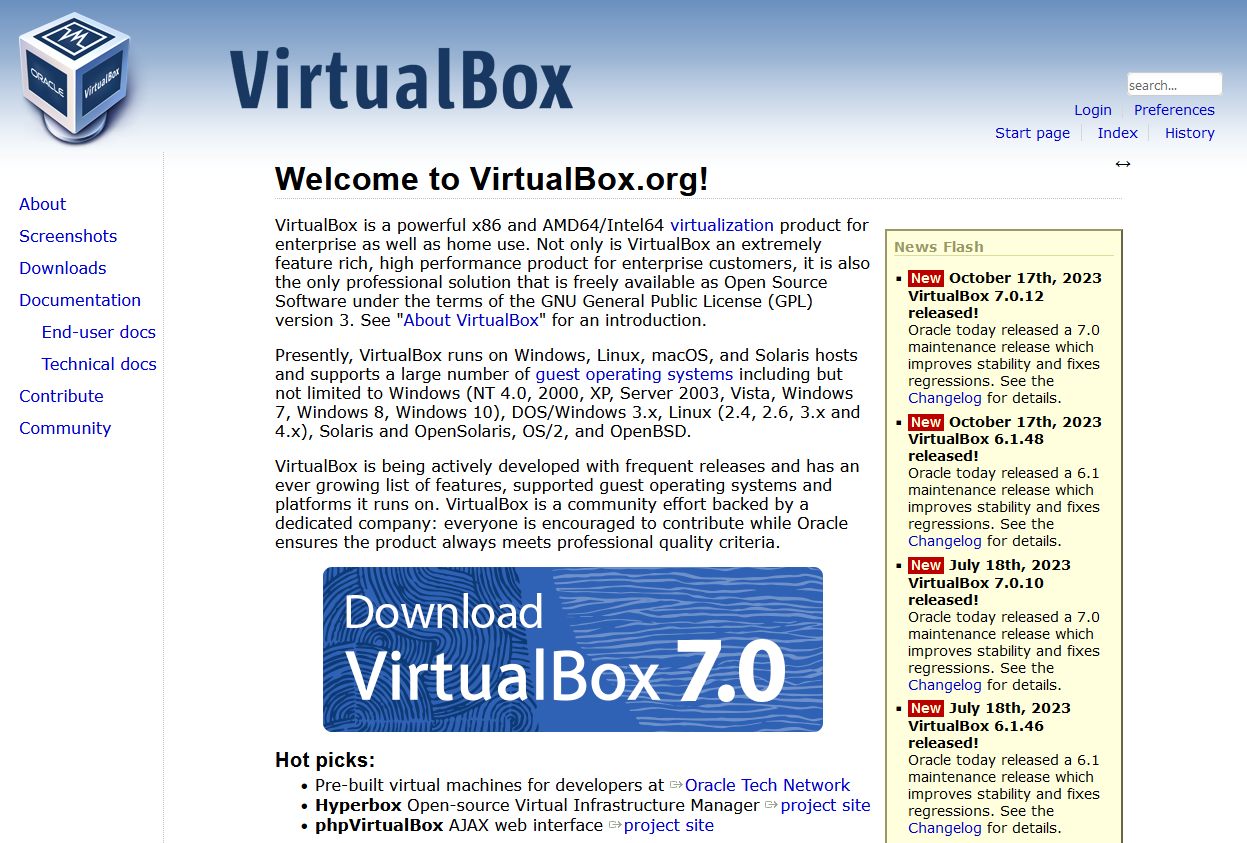
A screenshot of the web site for VirtualBox

Despite Parallels and VirtualBox both being programs which run virtual machines on Mac OS X, they both use different file formats for storing the virtual machines on disk. Though I believe Parallels will open a VirtualBox disk, VirtualBox cannot automatically import Parallels disks. But it’s not impossible…

If the guest operating system, i.e. the system that is running inside Parallels, is Windows 2000/XP/Vista, then it is possible to use a free tool from VMWare to do the conversion. Here’s a step-by-step:

1. Back up your virtual machine

Seriously. We’ll need to modify it a bit before it’s converted, so you’ll want a backup copy just in case things go wrong, or if you may use Parallels again in future.

2. Uninstall Parallels Tools

This is the modifying bit. Load your Windows virtual machine in Parallels, and uninstall Parallels Tools (the helper program that adds drivers and clipboard sharing, and other stuff). This is important as otherwise your virtual machine won’t boot in VirtualBox – and I know this from experience. You also can’t uninstall Parallels Tools unless you are running Parallels at the time.

3. Close all programs

Close as many running programs in your virtual machine as possible. We’re about to take a snapshot image of it while it is running, so any unsaved data may be lost when you boot the image in VirtualBox. That includes programs with icons in your notification area, such as virus scanners, instant messaging programs etc.

4. Install VMWare Converter

Once Parallels Tools has been uninstalled (you may need to reboot the virtual machine for this), we can begin the conversion process using a tool ironically made by VMWare. Go to the download page for the VMWare Converter in whatever web browser you use in your virtual machine (it’s a Windows program) Download it, and then install it.

Run the Converter tool, and click ‘Convert Machine’ – this should pop up a wizard which walks you through the process of setting up a new virtual machine image. You want to tell it to use a ‘Physical Computer’, and then on the next screen choose ‘This Local Machine’. Select the hard disk of the virtual machine and leave ‘Ignore page file and hibernation file’ ticked as this will just bloat the new virtual disk with unnecessary rubbish.

For the type of virtual machine, select ‘Other virtual machine’, and on the next screen, give it a name (e.g. ‘Windows Vista’). Next, you will also need to save it somewhere, and this should not be the existing hard disk of the virtual machine. You can either use your Mac’s main hard disk, mapped to drive ‘Z:’ under Parallels, a network drive or an external drive if you have it forwarded through to the virtual machine. You should be able to use the top option for the type (i.e. ‘Workstation 6.x’) but if it doesn’t work try another option. Keep ‘Allow disk to expand’ checked on the next screen. Click through until you’re ready to complete, and start the conversion.

5. Go and grab a cup of coffee

Or go out shopping. Or read a few chapters of War and Peace. Either way, the machine will take a significant amount of time to convert – mine took around 45 minutes and was only around 15 GB. Bigger disks may well take longer. It helps if you don’t have lots of other programs running on your Mac at the same time as then more of your CPU juice can be used for the conversion.

6. Shut down the machine in Parallels

Now that you’ve exported the machine, shut down Windows and close Parallels. This is mostly so that you can stay within the terms of the license agreement for Windows which won’t allow multiple instances.

7. Import the disk into VirtualBox

Open VirtualBox, choose ‘File’ and then ‘Virtual Disk Manager’. Add the disk file that you created, and click OK. Then click ‘New’ to create a new virtual machine, and select the correct operating system from the list. Try to ensure that you give the virtual machine the same settings (such as RAM size) as you did in Parallels. When asked for a hard disk, click the ‘Existing’ button and choose the disk file that you created from the list. Then click Finish.

8. Boot up in VirtualBox

Hopefully all will have gone to plan, and you will be able to boot into Windows as before. All of your files and programs should be there waiting for you.

If, however, you encounter a blue screen mentioning ‘prlfs.sys’ like I did, boot the machine but press F8 during the boot to enter Safe Mode with Command Prompt. Type in cd c:\windows\system32\drivers and then rename prlfs.sys prlfs.sys.old and then reboot – that should get you up and running.

For the inquisitive, prlfs.sys is part of Parallels Tools and this should have been removed as part of step 2, however muggins here forgot to this when he tried it himself and therefore encountered this error.

9. Install VirtualBox Guest Additions

Guest Additions are to VirtualBox what Parallels Tools are to Parallels – in other words, they make Windows sit better in the virtual machine and improve integration with the host operating system. On the main VirtualBox menu, select Devices and then ‘Install Guest Additions’ and follow the on-screen instructions. Though this is optional, it will improve the experience of using Windows in VirtualBox.

Hopefully now you’ll be up and running in VirtualBox. Feel free to post comments below and I’ll try to do what I can to answer them but I’m not the world’s greatest expert in this. I also don’t know how to do this in other versions of Windows or other operating systems.


Posts 0 – 4 Comments

Weirdly, there’s been a small increase in the number of comments on here over the past few days, despite the fact I’ve only managed one post so far this month.

Main reason for the lack of posts has been partly because I’ve been very busy, partly because I’ve had nothing interesting to write about, and partly because my life isn’t that great right now. Those of you who know me better will know the details but I don’t want to say much publicly until the situation calms down. Which it should do soon, I hope.

Me and Hari are fine, by the way.