Mac Mini alive again

January wasn’t a great month for me and my 2 Macs, as I managed to get both of them to stop working. First of all, the backlight on my MacBook’s screen stopped working, which I managed to fix after about half an hour’s Googling. Then I found my Mac Mini was refusing to boot but alas was not able to fix it.

The good news is that I have now fixed it. The bad news is that I’m not entirely sure what it was I did that got it to work again. Essentially, I took the lid off (easier said than done as it requires using a thin, flexible knife to prize the shell away from the base), poked at it, put the lid back on again and it booted up fine.

I say essentially because there was more to it than that. Because I was receiving the error ‘ALLOC-MEM request too big!’ from OpenFirmware while booting, I first assumed it to be a RAM error, so I took the RAM out and re-seated it, then booted the machine without putting the cover back on. That didn’t work, so I poked at the Bluetooth and Airport aerials to see if that made any difference – again nothing. So I put the lid back on and was about to concede defeat, but decided to see if putting the lid on had made any difference. And it had – the machine booted up, albeit slowly.

The computer is now running, although it does seem slow – that may just be because it always has been slow and I just haven’t used it recently. I haven’t yet restarted it so it may of course be a fluke, but right now all the programs on it seem to be working fine – no unexplained crashes and no grey screens of death as yet.

So if you have the dreaded ‘ALLOC-MEM request too big!’ error, trying taking your Mac apart and check if everything is seated correctly, and then try booting again. It may fix it. Of course, if it doesn’t, it may be indicative of bigger problems so don’t rule out a trip to the Genius Bar or a call to AppleCare.

And now it’s the Mac Mini’s turn

As many of you will know, as well as my MacBook, which I use as my main computer, I have a Mac Mini as well – this was my first Mac which I bought in 2005. It has spent the past year or so searching for a purpose – I was, and still am, hoping to turn it into a media centre but I’ve neither had the time or money to go ahead with it, and to be honest, I don’t really need to either.

Anyway, after yesterday’s shenanigans with my MacBook, it’s the turn of the Mac Mini to refuse to work. It’s actually not a problem that developed today – I noticed it wasn’t working last week, but as I run it headless I didn’t have a computer monitor to plug it into. All I knew was that it wasn’t registering itself on the network.
Today I had chance to use it with an external monitor. I heard the startup sound, saw the Apple logo on the screen, and then, nothing. No status indicator, just the Apple logo.

So, I zapped the PRAM – Command+Option+P+R. This time, the status indicator appeared for about 10 seconds before the Grey Screen of Death appeared, showing a kernel panic. This happened with subsequent boots.

So, I tried booting from the OS X CDs. Same problem. In fact, after a while, all I could do was access the Open Firmware command prompt.

This therefore means that there’s something wrong with the RAM or another component. Over the Christmas period, I took my Mac Mini with me to my parents in York, rather than leaving it in Bradford as I figured it would be safer. I’m guessing that it may have got jolted in transit and one or more of the components is out of place. It could also be bad RAM, but the RAM was only replaced in November 2006 and it was good-quality Crucial RAM. Plus, it’s a faff trying to get the damn thing apart and will probably require the purchase of another putty knife seeing as my existing one has gone missing.

In the meantime, I have a nice iOrnament.

How to: fix your MacBook screen

Had a bit of a panic this morning when I let my MacBook go to sleep, and upon re-awaking the screen’s backlight would not come on. The screen itself was working, as I could see a small portion of the desktop in the middle where the Apple logo is, but the rest was un-viewable.

It’s working now, but not after trying almost every trick in the book. I’ve listed all of the methods here, mostly for my own reference in case it happens again but also for anyone having a similar problem.

Diagnostics

First of all, make sure that the rest of the computer is working. If you have an external display handy, plug that in and use Fn+F7 to activate it (you may not need to hold down the Fn key depending on your Mac’s settings). If you can see your desktop on the external display then the problem is with the display – if not, you computer may have deeper problems. If you have VNC set up, you could try this too.

1. Set your brightness

Sometimes it’s the basic things – your brightness might be set to minimum. Use Fn+F2 to turn up the brightness (you may not need to hold down the Fn key depending on your Mac’s settings).

2. Zap your PRAM

One trick to deal with minor hardware problems is to reset your PRAM and NVRAM. To do this, power down your Mac, then, turn it on and hold down Command+Option+P+R at the same time, until your Mac makes the ‘ding’ noise again. Command is the Apple key, Option may be labelled as ‘alt’ on your computer.

3. Reset your Energy Saver settings

You may need to use an external monitor or VNC for this. While you Mac is booted, open System Preferences and choose Energy Saver. Under ‘Put the displays to sleep’, set the timer to 1 minute, and then wait 1 minute for your machine to go to sleep. Wake it up, and hopefully your screen will spring back to life.

4. Take out the battery

If your Mac is a portable, turn the computer off, unplug the AC power cord, and take the battery out. Next, hold down the power button for 5 seconds, and the re-insert the battery. Then boot up again. In my case, this is what worked.

How to migrate a Parallels virtual machine to VirtualBox

A screenshot of the web site for VirtualBox

Despite Parallels and VirtualBox both being programs which run virtual machines on Mac OS X, they both use different file formats for storing the virtual machines on disk. Though I believe Parallels will open a VirtualBox disk, VirtualBox cannot automatically import Parallels disks. But it’s not impossible…

If the guest operating system, i.e. the system that is running inside Parallels, is Windows 2000/XP/Vista, then it is possible to use a free tool from VMWare to do the conversion. Here’s a step-by-step:

1. Back up your virtual machine

Seriously. We’ll need to modify it a bit before it’s converted, so you’ll want a backup copy just in case things go wrong, or if you may use Parallels again in future.

2. Uninstall Parallels Tools

This is the modifying bit. Load your Windows virtual machine in Parallels, and uninstall Parallels Tools (the helper program that adds drivers and clipboard sharing, and other stuff). This is important as otherwise your virtual machine won’t boot in VirtualBox – and I know this from experience. You also can’t uninstall Parallels Tools unless you are running Parallels at the time.

3. Close all programs

Close as many running programs in your virtual machine as possible. We’re about to take a snapshot image of it while it is running, so any unsaved data may be lost when you boot the image in VirtualBox. That includes programs with icons in your notification area, such as virus scanners, instant messaging programs etc.

4. Install VMWare Converter

Once Parallels Tools has been uninstalled (you may need to reboot the virtual machine for this), we can begin the conversion process using a tool ironically made by VMWare. Go to the download page for the VMWare Converter in whatever web browser you use in your virtual machine (it’s a Windows program) Download it, and then install it.

Run the Converter tool, and click ‘Convert Machine’ – this should pop up a wizard which walks you through the process of setting up a new virtual machine image. You want to tell it to use a ‘Physical Computer’, and then on the next screen choose ‘This Local Machine’. Select the hard disk of the virtual machine and leave ‘Ignore page file and hibernation file’ ticked as this will just bloat the new virtual disk with unnecessary rubbish.

For the type of virtual machine, select ‘Other virtual machine’, and on the next screen, give it a name (e.g. ‘Windows Vista’). Next, you will also need to save it somewhere, and this should not be the existing hard disk of the virtual machine. You can either use your Mac’s main hard disk, mapped to drive ‘Z:’ under Parallels, a network drive or an external drive if you have it forwarded through to the virtual machine. You should be able to use the top option for the type (i.e. ‘Workstation 6.x’) but if it doesn’t work try another option. Keep ‘Allow disk to expand’ checked on the next screen. Click through until you’re ready to complete, and start the conversion.

5. Go and grab a cup of coffee

Or go out shopping. Or read a few chapters of War and Peace. Either way, the machine will take a significant amount of time to convert – mine took around 45 minutes and was only around 15 GB. Bigger disks may well take longer. It helps if you don’t have lots of other programs running on your Mac at the same time as then more of your CPU juice can be used for the conversion.

6. Shut down the machine in Parallels

Now that you’ve exported the machine, shut down Windows and close Parallels. This is mostly so that you can stay within the terms of the license agreement for Windows which won’t allow multiple instances.

7. Import the disk into VirtualBox

Open VirtualBox, choose ‘File’ and then ‘Virtual Disk Manager’. Add the disk file that you created, and click OK. Then click ‘New’ to create a new virtual machine, and select the correct operating system from the list. Try to ensure that you give the virtual machine the same settings (such as RAM size) as you did in Parallels. When asked for a hard disk, click the ‘Existing’ button and choose the disk file that you created from the list. Then click Finish.

8. Boot up in VirtualBox

Hopefully all will have gone to plan, and you will be able to boot into Windows as before. All of your files and programs should be there waiting for you.

If, however, you encounter a blue screen mentioning ‘prlfs.sys’ like I did, boot the machine but press F8 during the boot to enter Safe Mode with Command Prompt. Type in cd c:\windows\system32\drivers and then rename prlfs.sys prlfs.sys.old and then reboot – that should get you up and running.

For the inquisitive, prlfs.sys is part of Parallels Tools and this should have been removed as part of step 2, however muggins here forgot to this when he tried it himself and therefore encountered this error.

9. Install VirtualBox Guest Additions

Guest Additions are to VirtualBox what Parallels Tools are to Parallels – in other words, they make Windows sit better in the virtual machine and improve integration with the host operating system. On the main VirtualBox menu, select Devices and then ‘Install Guest Additions’ and follow the on-screen instructions. Though this is optional, it will improve the experience of using Windows in VirtualBox.

Hopefully now you’ll be up and running in VirtualBox. Feel free to post comments below and I’ll try to do what I can to answer them but I’m not the world’s greatest expert in this. I also don’t know how to do this in other versions of Windows or other operating systems.

More on the upgrade

As promised, here is more about the upgrade I did to my parents’ computer last weekend.

The computer will be 4 years old in October and I wanted to sort out its current shortcomings while also making it capable of running for at least another 2-3 years. The agreed budget was £100, about 6 times less than the original cost of the computer.

In the end, we went for the following internal components:

  • 2 GB of Corsair Value Select PC3200 RAM
  • 256MB XFX nVidia GeForce 6200A AGP 4x/8x graphics card
  • A no-brand USB and FireWire PCI card

The memory was the most important part of the upgrade. Originally, the machine only had 512 MB of RAM, and as such was struggling. As a matter of principle I only buy Corsair or Crucial RAM as I know it’s good quality, and on this instance I went for Corsair as it was slightly cheaper and could be shipped as part of the same order from Scan. It was still the most costly aspect of the upgrade at £39.32 (ex VAT), taking the majority of the £100 budget.

Next was the graphics card. Right now the machine has onboard VIA graphics, which can do some basic 3D but not much more (it will just about handle the original World of Warcraft with all of the effects turned off, but it’s not pretty), and it leeches system RAM rather than having its own. Furthermore, the manufacturer has not produced any new drivers for Windows Vista. So, as part of my plan to keep the machine running for a few years, allowing for a potential Vista upgrade is important. I doubt nVidia are due to disappear any time soon, so hopefully this new card will be a safe bet. It also adds DVI and S-Video output, allowing connection to a TV or a more modern TFT screen.

Finally, I added a USB and FireWire PCI card. The machine had 2 USB ports at the front and 2 at the back, but both of those at the back were full and my parents were already having to use a hub. The machine is due to be moved to a room where there is no wired socket for Ethernet, so we’ve opted to go for a USB wireless dongle (the Netgear WG111 previously mentioned), so that would be another USB port used up. As an extra PCI card was only around £5, it made sense to add 4 more ports. It also adds 2 FireWire 400 (IEEE 1394a) ports, which the computer previously lacked; whether my parents will ever use them is perhaps questionable but at least they are there, and it may add resale value to the machine.

These 3 items, plus the Netgear dongle, packing and VAT, came to £100.19, so only a bit over budget 🙂 . The difference is very noticeable – startup times are improved and general performance is much better. The machine is now almost ready for Windows Vista – the only device lacking a Vista-compatible driver is the internal modem, which isn’t in use anyway and could be removed if necessary (it’s made by SmartLink who sold their assets to Connexant in 2006, and then disappeared off the face of the earth. Their latest drivers don’t even work correctly with Windows XP SP2).

Stop… upgrade time!

My parents’ computer is in need of a mid-life upgrade. It was bought in October 2004 and, at the time, gave acceptable performance. But now it’s flagging a bit, in comparison to the latest and greatest. To save you reading the old entry, here’s the specs:

  • AMD Athlon XP 3000+
  • 512 MB RAM
  • 80 GB HD
  • DVD rewriter
  • 64MB onboard graphics
  • Plus all of the usual stuff

Three-and-a-half years on, and it looks like the main weak points are the memory and graphics. The processor is reasonably good, and I’m not inclined to replace it as the prospect quite frankly scares me, and they still have ample space on the hard drive.

512 MB RAM is low by today’s standards, and so I’m proposing an upgrade to 2 GB – the maximum the machine will hold. Upgrading the RAM on Hari’s machine, which is of a similar specification and age, made a big difference and so this would be my first choice.

The graphics are the other aspect I want to upgrade. Right now it’s a VIA onboard job, which as well as being underpowered also lacks Windows Vista drivers, so if my parents do ever upgrade (unlikely, but I wouldn’t rule it out) they would potentially run into problems. The machine does have an unused AGP port, and so a cheap graphics card would be an instant upgrade. It would also return those 64 MB of RAM that it used to the computer, although 64 MB is a drop in the ocean when you have 2 GB.

We still have Hari’s old graphics card lying around (in a static-proof sleeve), which is based on the nVidia GeForce 5200 FX chipset. This was okay for normal use on her computer but seriously impacted her WoW gaming. Now, my parents are hardly likely to be fragging noobs or levelling shadow priests any time soon, but a better card can be bought for very little money. In fact, £25 would buy you something based around the full nVidia GeForce 6200 chipset (as opposed to the budget FX range). So it’s a question of saving £25 and recycling the old card, or getting something better for a little more money.

The computer also needs equipping for Wifi, probably by virtue of a USB dongle, but at less than £10 a piece that’s not a major issue. The total budget for all of this is £100, with the RAM costing about £50 (looking at Crucial and Corsair prices). There’s ample room for a reasonable graphics card, but I’m wondering whether to bother or not.

What do you think?

Missing .vxd files

I mentioned back in June that Hari and I inherited a spare computer, which until now has been sat in our house serving no purpose. However, I now have a reason to use it – I joined a new guild in World of Warcraft and need to run Ventrilo 2.1 to be able to take part in raids, and I can’t for the life of me get it to work properly on my Mac using Crossover.

I mentioned that the computer lacked a network card so I bought one today, and fitted it. Alas this machine is not running a nice operating system like Windows 2000 or XP, but Windows 98SE which doesn’t ship with the relevant drivers. Worse, as this machine had never been used on a network before, it was missing all of the Windows network components. Worse still, I didn’t have the Windows 98 CD, and even worse than that, the relevant files were not saved somewhere on the hard disk. Big problem.

Of course I was busy installing the network card drivers by this point and so upon rebooting I received a series of errors to do with missing .vxd files, namely vnetsup.vxd, vredir.vxd and dfs.vxd, the latter of which gives me a mental image of a double discount sofa sales. Anyway, I found a forum post on some site which I can’t seem to find again which pointed to these technical support files, namely ‘Directory Services client for Windows 95/98’ which includes these files and will happily install them for you. You can then get rid of the program through Add/Remove Programs and it’ll be nice and leave the .vxd files there for you.

Alas, these were only some of the missing files needed for networking, so while they did remove the horrible errors I was getting they didn’t actually get me on the network, so I’ve had to resort to downloading some files from a shady torrent site in the hope that I can get things going.

Ideally I would have liked to have been able to wipe the hard drive and stick Linux on this machine, but unfortunately its primary role as a Ventrilo machine means that it’s Windows or nuthin.

What would you do with a spare computer?

With a bit of luck, Hari and I will be picking up the keys for our new place today – we’re well into packing stuff although there’s still lots to do. One of Hari’s current housemates is donating his old computer, which he no longer needs and doesn’t want to sell, mainly because it’s rather old and wouldn’t sell for much and hasn’t got a monitor or keyboard (and isn’t able to take it for recycling). So we’re taking it.

Except I don’t actually know what to do with it.

The computer has an 800Mhz processor, 30 GB hard drive and 32 MB graphics. It’s recent enough to have 2 USB ports and an internal modem, but not recent enough to have a network socket. It also comes with not one, not two, but three optical drives – a CDROM drive, a CD-RW drive and a DVDROM drive. I have no idea what operating system it has but I’d imagine it’ll be Windows 98.

The lack of a network socket means its usefulness is somewhat limited, but adding one isn’t going to be difficult. Even then, I’m unsure what it can be used for. Its hard drive is a bit too small for a network server, and to make it into a router would require adding 2 network cards and a Wifi card if we wanted that as well. Furthermore, if it was a router it would probably have to go in the living room and I’d prefer not to have a big beige box there if possible – I’d rather have my Mac Mini, given the choice, or preferably a dedicated router which we’ll probably need to buy. A dedicated router would also use up less electricity, seeing as it’ll be on 24/7 essentially.

I can get an old CRT monitor for it and I’m sure I can pick up a cheap keyboard from somewhere so it won’t cost much to make it into a decent computer system, but I can’t imagine there’d be much demand for a computer of that vintage if I were to sell it. Hari and I between us already have 3 computers – my MacBook and Mac Mini, and her XCcube – so we don’t need another system really. So what would you lot do?

Here’s what you could have bought…

Apple has updated the MacBook range again, this being the third revision since they were launched last year. Mine is a first revision, and while there’s nothing wrong with it, had I waited 9 months I could have got (for the same price that I paid):

  • A 2 GHz Intel Core 2 Duo processor, instead of a 1.83GHz Intel Core Duo processor
  • 80 GB hard drive, instead of 60 GB
  • 802.11n Wi-fi, instead of 802.11g (108 Mbps instead of 54 Mbps)
  • Faster writing of CD-RW discs (16x instead of 10x)

But never mind. It’s had 9 months of very heavy use and yet doesn’t seem to be suffering – the battery is still at well over 90% of its original capacity and everyone else seems to work fine. I guess I’m just envious.

Create a Safely Remove Hardware shortcut

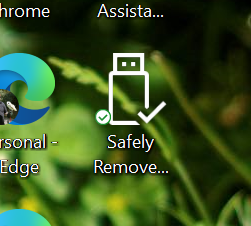
A screenshot of a Safely Remove Hardware shortcut on Windows desktop.

Here’s a tip I gleamed from today’s Windows Secrets newsletter. You may well be familiar with the ‘Safely Remove Hardware’ icon which appears in your notification area (or ‘system tray’ if you must) when you plug in a removable hard drive or camera (or whatever). You may also notice that the icon sometimes isn’t there – and this is a problem which my parents’ computer randomly suffers from – which means it’s difficult to safely disconnect removable devices. The answer: a desktop shortcut.

Right-click on the desktop, select ‘New’ and then ‘Shortcut’. For the item location, copy and paste the following:

RunDll32.exe shell32.dll,Control_RunDLL HotPlug.dll

Then click ‘Next’. Call the shortcut ‘Safely Remove Hardware’, and you should be done. If you want to make it look snazzier, right-click the icon, choose ‘Properties’ and then the ‘Shortcut’ tab, click on ‘Change Icon’ and in the ‘Look for icons’ box type:

%windir%\system32\HotPlug.dll

The first icon in this file matches the ‘Safely Remove Hardware’ icon so you’ll be able to recognise it more easily.

Now, if the normal notification icon doesn’t appear, all you need do is double-click your new desktop icon to safely remove any disks before unplugging them.

Update (November 2023): This was written back in April 2007, but it still seems to work in Windows 10.

Creative Commons License
Except where otherwise noted, the content on this site is licensed under a Creative Commons Attribution-ShareAlike 4.0 International License.