My Apple predictions – how did I do?

iPhone 4, meet iPhone 5

Following yesterday’s predictions that I made, we now know what Apple will be launching later this month. Were my predictions correct?

New iPhone models

I was pretty-much bang on about the two new iPhones – the cheaper 5C and the premium 5S. There were so many leaks of information that these were expected by many, and so it was a bit of let-down when Apple were unable to surprise us. As predicted there would be a new processor, which was indeed the A7, although the M7 co-processor to manage the motion sensors was a surprise. And as expected the iPhone 5S will ship with a fingerprint scanner on the home button.

The iPhone 5C is, as expected, a cheaper plastic phone, but it’s not significantly cheaper than the iPhone 5 was. Unless Apple will be selling it more cheaply in emerging markets and then pricing it higher in the more lucrative Western markets.

Both handsets will actually come in five versions (so ten in total), with different models for different networks, due to the big variation in frequency bands for 4G LTE. Vodafone is listed in the UK, meaning that the 5S and 5C will work on its 4G network. The iPhone 5 didn’t because Vodafone and O2 will be using the frequency bands that were freed up when analogue terrestrial television broadcasts were turned off last year. Whilst O2 isn’t listed, as the original launch partner for the iPhone in the UK I expect this is an oversight and that they will offer 4G services on the new handsets, and I expect 3 will do as they will offer 4G on the existing iPhone 5 last this year.

Apple have unexpectedly returned to the case market with new cases for both models. There’s also a new docks – one for the 5 and 5S, and one for the 5C.

Retiring of the old models.

Nope. Got this wrong. The iPad 2 and iPhone 4S are still on sale, and even the iPhone 4 will be available in China. Apple did kill off one its phones though, and surprisingly it was the iPhone 5. The 5C and 5S will therefore completely replace it. Normally Apple keep at least the previous two models on sale, although the third-generation iPad with retina display was retired after 8 months so it’s not completely unheard of.

The iPod Classic gets a stay of execution

I fully expected Apple to finally give the iPod Classic the Old Yeller treatment, but it’s still on sale, surprisingly. There were no major changes to the iPod range yesterday (with one exception, see below) and my hope of a 128 GB iPod Touch didn’t become a reality.

No NFC

As expected, Apple have not added support for NFC to their phones. I agree with Apple that Bluetooth SMART has more potential than NFC.

No Apple TV changes

Sadly there are no changes coming to the Apple TV, despite my hopes. Apple needs to offer more services on the platform if it hopes to be competitive against rivals like Roku, particularly outside of the US.

And everything else

We didn’t get to see the much-rumoured smart watch yesterday. I imagine Apple are working on one but are waiting until they can offer something significantly better than the competition. Samsung released its Galaxy Gear smartwatch to very mixed reviews last week and I’ve heard quite a few people have been underwhelmed by the Pebble smartwatch. Maybe next time.

Apple made a very slight change to the iPod range; the ‘space grey’ colour was added to the existing models. Other than that, there were no changes to the iPod line-up.

After two years, the Cards app for iOS, which allowed you turn your pictures into greetings cards, was discontinued. I don’t know anyone who used this so this isn’t surprising. That being said, I don’t know anyone who uses the ‘Stocks’ app that comes with every iPhone and can’t be deleted, yet it’s still there in iOS 7.

My predictions for today’s Apple event

Invite to Apple's 10th September event

Today Apple is announcing something, at around 6pm BST. It’s probably the seventh iteration of the iPhone, and the rumours suggest that this is the case, but until Tim Cook steps up on stage this evening we won’t know for sure.

I’ve got a few predictions, mostly based on the rumours that I’ve been reading over the past few weeks. I don’t actively seek out rumours but they do appear on sites like The Unofficial Apple Weblog and Twitter from time to time. So here’s what I expect:

Two new iPhone models, including a budget model

There are credible rumours that Apple will release two new models of the iPhone today – a new iPhone 5S, and a cheaper iPhone 5C. The 5S will probably have the same form factor as the existing iPhone 5 but have some extra hardware features and a beefed-up processor – possibly the A6X as used in the fourth-generation iPad but maybe a new A7 processor. I also believe the rumours of a fingerprint scanner on the home button.

The iPhone 5C will be a cheaper and more plasticy model that will be particularly aimed at emerging markets like China, but I think it will also do well in western markets. I know there are people out there who want to buy an iPhone but can’t justify the cost, and don’t want an old model.

The iPhone 4, 4S and iPad 2 will be retired

The three year old iPhone 4 is sure to be retired but I expect the 4S to go, and the iPad 2. This will mean that all of Apple’s mobile products will use the Lightning connector, rather than the 30-pin Dock connector, and all of its phones will have the same screen size.

The iPod Classic will be retired

It’s been 4 years since the last update to the iPod Classic, which is the only remaining iPod model to include a hard disk (as opposed to flash memory). Wired thinks it’ll be dropped and I agree. I hope that a new 128 GB iPod Touch will be released, so that Apple can still cater for those who want to be able to play their entire large music collection on the go.

Neither of the new iPhones will have NFC

NFC, or near-field communication, is becoming standard on many Android and Windows phones. But I can’t see Apple adopting it. They’ll go for Bluetooth SMART instead. Because the iPhone already has Bluetooth, this shouldn’t require any new hardware, and should be better for battery life too.

According to this AppleInsider article, this will be branded as iBeacons in iOS 7, and will be available not only in Apple’s new handsets, but the existing iPhone 4S and 5 as well.

Third-party apps for the Apple TV

Okay, this is less a prediction and more of a hope. Apple has been steadily increasing the number of platform partners for the Apple TV but it’s still very US-centric. The only UK channel available at present is Sky News.

I hope that Apple opens an App Store for the Apple TV, opening the door to apps such as BBC iPlayer, 4oD, Demand 5, ITV Player, Now TV and the like. This will make the device significantly more useful.

We will find out in just over eight hours’ time what comes to pass.

What I’ve done with my Raspberry Pi so far

Screenshot of Raspberry Pi running Raspbian through Screen Sharing and VNC

I’ve had my little Raspberry Pi for a couple of months now. To be honest, I haven’t used it for a great many things, other than as a BBC iPlayer client using XBian, but I have been spending a little more time in Raspbian recently to get to grips with it.

Running in headless mode

When I set up the Rasbperry Pi initially, I had it plugged into a computer monitor – my monitor thankfully has an HDMI input, and can switch between HDMI, VGA and DVI sources so I didn’t need to unplug my Mac. I also used a spare mouse, but at present I only own one keyboard which I had to keep unplugging and reconnecting with my Mac as I switched between them, which is hardly ideal.

So one of the first things I did was follow these instructions to enable VNC so that I could work with the Raspberry Pi using the Screen Sharing app on my Mac. I also used these instructions to ensure that my Mac could see it on the network, and share files. That guide also tells you how to set up VNC but I couldn’t get it to run on bootup, hence why I linked the other set of instructions as these worked for me.

Running the BOINC client

Since the Raspberry Pi is very energy efficient, I’ve decided to keep it on all the time and run SETI@Home on it, using BOINC. There are quite a few guides to this and on the whole this is the best one, although you will need to replace the URL in the wget command with the newer one for version 7 of the SETI@Home client. Although you can safely use the BOINC client that installs using Raspbian’s package manager (sudo apt-get install boinc-manager), you’ll need to download the SETI@Home client as instructed. The client that Raspbian offers through apt-get is out of date and so you won’t get any tasks to complete. I found this out the hard way.

If you use other BOINC projects, then you’ll probably find that most won’t work with the Raspberry Pi as they need to be compiled for the ARMv6 processor architecture. Rosetta@Home is one such example that I’m part of. The other big caveat is that tasks will take a very long time to complete. What a modern desktop PC could do in hours, may take up to a week of continuous computation for the Raspberry Pi to complete. But, it’ll do so using less electricity.

Getting used to Unix

This isn’t such a tangible thing, but I’ve been able to learn a lot more about Unix by having a Raspberry Pi to play with – especially when it comes to the command line. This is important as this blog runs on a Debian Linux server, and I do need to log in from time to time to do things. In particular, I’ve learned that nano is the easiest command line text editor to use and, in my opinion, is far superior to vi or vim.

I still have a lot more to learn, as and when I have free time to do so. It’s certainly been interesting, and better than working with a Linux virtual machine in VirtualBox.

I came, I saw, iPad

New old iPad

I have a new toy to play with – an iPad. It’s a hand-me down from my soon to be in-laws which I was only too happy to find a new home for.

It’s the first generation model, and is therefore a bit limited in what it can do. It’s a little slow at times, doesn’t have a camera or a retina display, and it can’t run iOS 6 – iOS 5.1.1 is the most recent release that works on it. This means that some apps, like 1Password, won’t run, but for the most part everything else works okay. But, it’s an iPad, and it didn’t cost me anything.

Since I already own an iPhone many of the apps also worked on the iPad so I was able to get up and running with it quite quickly. So far, the only extra apps I’ve added are Tweetbot, which has a separate iPad edition rather than a universal app, and Reeder, which again has a separate iPad app but is currently free.

The bigger screen is great for apps like Reeder, Feedly and Pocket, where being able to view a whole page makes reading much easier. It would be nicer if it had the retina display though – having owned an iPhone 4 and then iPhone 5 I’ve become accustomed to higher pixel depth.

Although this does mean that I no longer need to save up for an iPad in the short term (and with a wedding, honeymoon and probably a new house to pay for this is welcome), I may still consider buying an iPad Mini in future. I imagine the smaller screen is a bit easier to handle, and a good compromise between the full-size iPad and the iPhone. And if I do decide to upgrade, this iPad is still worth around £90 to recyclers.

My new favourite email client

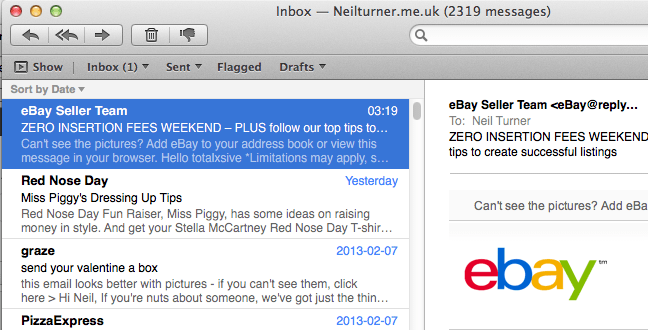
Screenshot of Apple Mail running on Mac OS X Lion

For many years I was a Mozilla Thunderbird user; I even used the beta builds back in 2003, long before its final 1.0 release. Though I still use it at work, where I deal with large volumes of email, at home it was overkill, and so I bought a copy of Sparrow which was simpler and lighter. Except last summer development of Sparrow basically stopped, thanks to Google taking over the Sparrow team.

Sparrow still works okay but with its future looking similar to that of Twitter’s official app I decided to start looking for alternatives. And I found one in a very unexpected place – already on my Mac.

When I switched to a Mac back in 2005, I carried on using Thunderbird, as back then I was still keen on its extensions and its flexibility, so I never bothered with Mail, which is the native email client available on all Macs. And in the almost 8 years since I’ve never bothered to revisit Mail, bar a couple of times out of curiosity when I’ve found it to be a bit over-complicated.

But then I found this article: Turning Mail.app Into the Best Mac Email App, linked from Lifehacker, which explains how to customise Mail to make it more effective. The article has a number of workflow suggestions which I don’t bother with, but it does also suggest how to simplify the interface to make it look, well, more like Sparrow.

It took some time; I have three personal email accounts (one on this domain, plus Gmail and Outlook.com) and Mail defaults to storing saved messages and drafts on local folders, so I had to teach Mail that I actually wanted to use the relevant IMAP folders for this. This involves opening each folder – which Mail confusingly calls ‘Mailboxes’ – and then marking it by clicking the Mailbox menu and using ‘Use this folder for’. Sparrow and Thunderbird both do this through Account Settings, and they both correctly configure Gmail automatically anyway.

Once done, though, I had a nice, clean and simple setup, with a unified inbox view of all three email accounts. Mail’s actually relatively efficient when it comes to system resources and, broadly speaking, uses about the same amount of RAM as Sparrow did.

Maybe I should have taken a fresh look at Mail sooner. It gets an update in each new version of OS X, and doesn’t cost anything extra.

Fixing high memory usage caused by mds

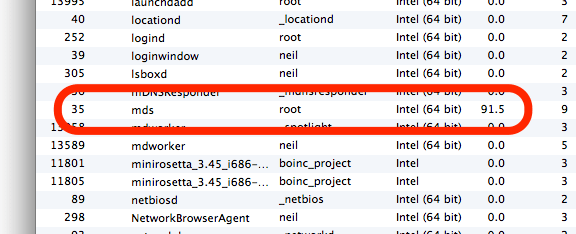
Screenshot of activity monitor on Mac OS X showing mds with high memory usafe

Recently my Mac Mini has been running very slowly, with some programs freezing for as much as several minutes. I pruned the list of items that were running on startup but this didn’t seem to make much difference.

So I opened Activity Monitor (the OS X equivalent of Task Manager) and found a process called ‘mds’ was consuming huge amounts of RAM and virtual memory. MDS is the process which builds an index of your disks for use by Spotlight, the tool that lets you search your drives, and also by Time Machine for backups. Sometimes MDS requires a fair amount of RAM, but it was using almost 2 gigabytes of virtual memory and almost a gigabyte of RAM in my case. I only have 4 gigabytes of RAM in total, and so this was causing major problems as OS X had to regularly swap data between RAM and the paging file.

I’d tried looking into this before and got nowhere. Most of the results in Google were discussions on Apple’s support forums, which were devoid of any real solutions. But eventually I found this post on iCan’t Internet which actually had a solution.

Firstly you should run Disk Utility. Repair your hard disk, and also repair the disk permissions. This may fix your problem, but it didn’t in my case so I moved on to the next step.

Open up Terminal, and type in the following command: sudo mdutil -avE . This runs a tool called ‘mdutil’, and tells it to completely rebuild Spotlight’s index. It turns out that the index on my hard disk had got corrupted somehow, and this was causing problems with the ‘mds’ process. It took a while for the command to run, but afterwards a huge amount of RAM and virtual memory became free. Unsurprisingly, my Mac ran much more happily after this.

Hopefully if you’ve have the same problem this will help. It has certainly breathed new life into my increasingly sluggish computer.

Comparing the iPhone 5 with the Nokia 100

Nokia 100 and Apple iPhone 5

At the moment, I’m one of those annoying people who has two mobile phones. There’s my own Apple iPhone 5, and I also have use of a brand new Nokia 100.

Clearly the iPhone 5 is the better phone – or is it? There are actually several ways that the Nokia 100 is better than the iPhone:

  1. Battery life. All smartphones have pretty poor battery life, with their high resolution colour screens, GPS, Bluetooth, Wifi, 3G support all putting strain on the battery. The iPhone 5 claims up to 225 hours – just over 9 days – standby, although most users will find they’ll need to charge it at least every other night. The Nokia 100, on the other hand, can last for over a month on standby from one charge – 35 days is claimed. That being said, the iPhone 5 claims 8 hours of talk time as opposed to the Nokia’s 6.7 hours.
  2. Smaller size. The Nokia 100 is shorter and narrower than the iPhone 5, although it is significantly thicker.
  3. User-replaceable battery. If the battery in your iPhone dies, then you’ll need to get it replaced by a professional. The Nokia 100, on the other hand, allows you to change the battery with ease, and you can even keep a spare charged battery to swap in.
  4. FM Radio. A data connection will let you listen to radio stations on your iPhone, but the Nokia 100 keeps it simple with a built-in FM radio.
  5. Torch. I’m sure there are apps out there that will allow you to use the flash LED on the back of your iPhone as a torch, however, the Nokia 100 includes a small LED in the top that can be used as a reasonably effective flashlight.
  6. Cheap. You can get a Nokia 100 on a pay-as-you-go tariff for only £10.

Of course, that’s about it. In every other way, the iPhone 5 is a better phone – it’s easier to use, with more features and better build quality.

How to use Google Sync without using Exchange

In a blog post on its official blog called ‘Winter cleaning‘, Google announced that it was shutting down some of its services. They are all features which have either been replaced with something (supposedly) better, or are only used by a small number of people and are therefore not worth keeping. This includes Google Sync, which allows the use of Microsoft Exchange protocols for synchronising Gmail, Google Contacts and Google Calendar.

Unfortunately, Exchange is what myself and a number of others use on the iPhone, as it’s the easiest way to synchronise mail, contacts and calendars at the same time. Now Google isn’t dropping Exchange support completely – users of Gmail and free Google Apps accounts (which recently closed to new sign-ups) can continue using it but won’t be able to set it up on new devices; paid Google Apps users will be able to carry on with no problems.

But it’s clear that Exchange support is not a priority for non-paying users like me and so it’s probably best to look at alternatives. Google is, refreshingly, pushing open standards instead – IMAP for email, CalDAV for calendars and CardDAV for contacts. Luckily for iPhone users like me, Apple supports all three, although Windows Phone users aren’t so lucky.

So, here’s how to replace your Exchange-based Google settings with IMAP, CalDAV and CardDAV:

Step 1: Remove the Exchange account

Open Settings, choose Mail, Contacts and Calendars, select your Google Account which is using Exchange, and then select Delete Account. This will remove all contacts, calendars and emails that have been synchronised so I would ensure you have backed your phone up first, just in case there are any problems.

Step 2: Set up a new Gmail account

You should now add your Gmail account in the standard way, by choosing ‘Add Account’ in Mail, Contacts and Calendars and then tapping the Gmail logo. This will set up email and calendar sync, using IMAP and CalDAV respectively, but not contacts.

Step 3: Set up a CardDAV account to synchronise contacts

Going back to the ‘Add Account’ screen, tap ‘Other’ and then ‘Add CardDAV Account’. In server, enter ‘google.com’, your Google Account username and password, and a description – I called mine ‘Google Contacts’.

Now, open the Mail, Contacts and Calender apps on your iPhone in turn to download the data again, which may take a couple of minutes. And then that’s it – you should be back to where you started.

If you find that some of your calendars are missing, open Mobile Safari and browse to https://www.google.com/calendar/syncselect – this will allow to select which calendars are synchronised over CalDAV. The changes will take effect the next time you open the Calendars app, after a few seconds.

These instructions are a bit long-winded and it would be nice if the iPhone’s Gmail support included Contacts as well (which would make step 3 unnecessary). However, considering Apple’s uneasy relationship with Google of late I can’t see this being a priority for them, especially as these features duplicate Apple’s iCloud.

Printer sharing with VirtualBox on a Mac

This blog post will probably be only be useful to a small niche. If you have a Mac, with a printer, and run Windows in VirtualBox, here’s what you need to do to get it to work.

Step 1: Make sure your printer is shared on the network

On your Mac, open System Preferences, choose Print & Scan, and then select your device on the list on the left. Tick ‘Share this printer on the network’.

Step 2: Check network settings for your virtual machine

In the VirtualBox manager, open your Windows virtual machine’s settings, and under Network, ensure you’re using ‘Bridged Adaptor’ rather than ‘NAT’. This will make your life much, much easier later on.

Step 3: Install and set up your printer using Bonjour

Bonjour ships on all Macs, but not on Windows, which is a shame because it makes setting up network connections much easier. Thankfully, Apple offers a cut-down version for Windows computers, so download Bonjour Print Services for Windows, and install it. This will add a ‘Bonjour Printer Wizard’ icon to your desktop.

Run the Bonjour Printer Wizard. If you’ve done the first two steps correctly, your printer should be listed. Click Next, and, if you’re lucky, Bonjour will install the correct driver and add the printer to Windows for you. Sorted. If not, then…

Step 4: Install the printer driver in Windows

Sometimes Bonjour won’t be able to identify which printer driver you need and will ask you to select it. Again, if you’re lucky, your printer will be one of those that Windows ships with, but if not, you may reach an impasse here. Some people have had luck with using a driver that is similar to their printer, but this doesn’t always work.

Instead, we’ll connect the printer directly to Windows to convince it to install the driver that way. VirtualBox lets you bridge any USB device which is plugged into your Mac, so that the virtual machine can see it. Turn your printer on, and then whilst Windows is running, click on the Devices menu in VirtualBox, select USB devices, and then choose your printer. Windows should detect that the printer is now ‘plugged in’, and so it will install the necessary drivers. Complete the installation, disconnect your printer using VirtualBox and then shut down both your virtual machine, and your Mac, to ensure that your printer is correctly picked up by your Mac on the next boot.

Start your Mac again, and then open Windows in VirtualBox, and try to run the Bonjour Printer Wizard again. Hopefully, this time you’ll be able to select your printer driver from the lists when presented (annoyingly it’s not searchable).

This still didn’t work for my printer, so I had to do one final trick. I clicked ‘Have Disk’, and then browsed to the c:\Windows\System32\DriverStore\FileRepository folder, then sorted the sub-folders by date. My printer is by HP, and one of the newly-created gobbledegook folders had ‘HP’ in the title which turned out to be my printer. I selected this, and was finally able to get the printer working, with the above test page as proof.

Why not just connect the printer directly?

In step 4, I mentioned you can simply connect your printer directly to the virtual machine, thus avoiding the dilly-dallying around with Bonjour. This works, but it’s flaky; once you’ve connected your printer to Windows, you may need to reboot your Mac before any Mac applications can print to it. Whilst setting up Bonjour is more effort initially, once it’s done, you should find it easier to work with.

If anyone’s interested, I went through all of this because I wanted to print out a coupon for a free one litre carton of grape juice and couldn’t get the Coupon Printer to work correctly on my Mac.

Windows 8 Installation Experience

A screenshot of Windows 8 being installed on a VirtualBox virtual machine running on a Mac

On Saturday, I decided to upgrade to Windows 8. I’ve been running a virtual machine with Windows Vista Business for some time, firstly in Parallels Desktop but later converted to VirtualBox. I never bothered upgrading to Windows 7 due to the lack of differences between the two; obviously 7 is a big upgrade from XP but not from Vista.

Another major factor is that, at the moment, existing Windows XP, Vista and 7 users can upgrade to Windows 8 Pro for a mere £24.99 as a digital download, or more if you need it on DVD. It’s a very good deal, but it’s only valid until early next year. And since I’d also heard that Windows 8 should run faster on the same hardware, upgrading seemed like a really good idea.

To upgrade, you should download the Upgrade Assistant which checks your current installation for compatibility and then downloads the files. You can then either proceed with the upgrade, or save an ISO file to a USB drive or DVD-ROM. I decided to proceed, but told the installer not to keep any of my documents or settings; after all, it was a virtual machine and anything important had been saved to Dropbox and was therefore available elsewhere.

This turned out to be a mistake, frankly. It installed the files, restarted a couple of times, and then froze. No animation, no CPU activity, no disk activity. So, I hard reset the virtual machine. At which point, setup decided that the installation had failed, and set about restoring Windows Vista. So, after a few hours, I was back at square one.

This time, I told the installer to save the ISO file, which I placed in a shared folder so it was accessible by my Mac as well. I then shut down the virtual machine, and created a fresh, new VM in VirtualBox with the optimal Windows 8 settings. Bear in mind that my previous VM was originally a Parallels VM, was then converted to the VMWare format, and then used with VirtualBox 2; now I’m on VirtualBox 4.2. I mounted the ISO file mounted as the CD drive, booted up, followed the instructions, and within the hour I was up and running with Windows 8. Success!

…or so I thought. Opening the ‘classic’ desktop environment saw the little icon for the Windows Action Centre pop up, telling me I needed to activate Windows – which was odd because I had entered the product key during installation. So I re-entered it, only for Windows to pop up a 0xC004F601 error, telling me that the product key was only valid for upgrades and not a clean installation like this one.

Some expletives were issued by me at this point, but thankfully Google saved my sanity as I found this blog post which explained a workaround. I had to edit the registry to change a value, re-run the activation manager and then reboot, but after this Windows activated with no problems. Phew.

Obviously I still have the old Windows Vista VM lying around but as that license is now invalid due to the upgrade I’ll be deleting it. That, and I shouldn’t need it anyway.

I’ll write more about my actual experiences of using Windows 8 when I’ve had a longer opportunity to use it. So far, it seems okay, and the ‘classic’ desktop is almost exactly the same as Windows 7. I’ll have to play with the new desktop (formally known as ‘Metro’) a little more before passing judgement.

Creative Commons License
Except where otherwise noted, the content on this site is licensed under a Creative Commons Attribution-ShareAlike 4.0 International License.